Key Metrics in Card Sorting & Tree Testing
Card sorting reveals which items people group together and where their expectations differ. Tree testing shows whether participants reach the intended destination for a task and which paths they take. This page explains what each result means and the decision it supports, in the order you meet them: sort, candidate structure, tree test, next version.
1. Card Sorting Results
Pair similarity and the similarity matrix
Across the included card sorts, UXbeam calculates how often each pair of cards was grouped together, expressed as a share of participants. A card a participant left unsorted counts as "not together" for that participant. The similarity matrix brings frequently grouped cards close together, making possible sections easier to see.
Three bands do the work. The dark band is the backbone: pairs most participants grouped, and the natural core of a section. The empty band shows you the pairs participants kept apart, which is where separate sections, and the distinctions between them, start to take shape. The middle band deserves the closest look: participants grouped those pairs differently, giving you useful alternatives to examine as you shape the architecture. The similarity matrix guide walks through a full reading.
In the Smart Home sort, 28 of 36 participants placed "Check whether a window is open" with "Check whether the garage door is closed", 25 placed the garage door with "Lock the front door", and 23 placed it with "See who is at the front door". Those repeated pairings make security and entry a strong candidate section to explore first. Those pairs were the exception: 164 of the 190 pairs shared a group in fewer than half of the sorts, so the rest of the structure had to be decided rather than read off.
Dendrogram and clustering
The matrix reveals relationships between individual cards. The dendrogram brings those relationships together, showing how smaller card groups combine into possible navigation sections. UXbeam's analysis engine builds it from the raw sorts with average linkage: each join sits at the average similarity of the cards it brings together, on a scale relative to the study's own tree. Follow the branches from individual cards toward larger groups to see which items join early and where broader sections begin to form. Reading the matrix and the dendrogram together helps you identify promising groups, examine their boundaries and decide what to carry into a candidate structure.
When some cards are left unsorted, the two analyses handle those missing placements differently, so in an incomplete sort a pair's share in the matrix and its join in the dendrogram need not agree. The dendrogram guide covers cuts, persistent groups and boundary cards in depth.

Threshold, groups and agreement
A similarity threshold turns the dendrogram into groups you can explore as candidate navigation sections. UXbeam proposes a default cut at the largest natural gap that yields a workable number of groups; in open and hybrid sorts with enough participants you can drag it, and closed sorts need no cut because the categories were given.
At the chosen cut, three readings turn the tree into decisions. Cards between groups are the boundary cases, cards whose participants' categories straddle two groups: your candidates for a cross-link or a second entry point. Singletons stand alone at this cut, making them useful cards to examine before deciding where they belong. Average within-group agreement is the mean pair similarity inside the groups: the higher it is, the more consistently participants formed that group, and the stronger the case for carrying it into a candidate section and testing it there.
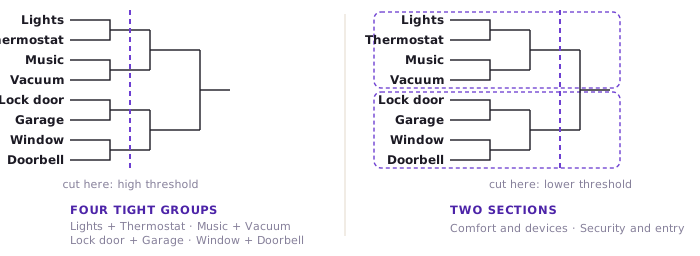
Drag the cut and you are exploring candidate structures in real time. A higher threshold shows the tight groups participants formed most consistently; a lower one shows how those groups combine into top-level sections. Comparing both views lets you choose whether to draft tighter subsections or broader top-level sections.

Group and category labels
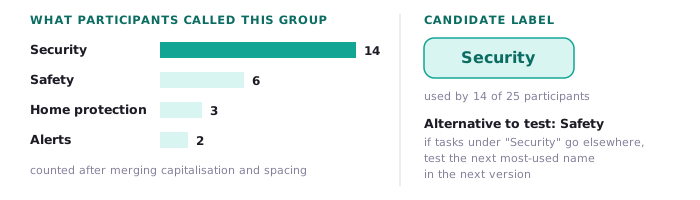
Participants give you a starting vocabulary for navigation labels in their own words. UXbeam reports them two ways: the most-used names across the whole sort, counted after merging capitalisation and spacing, and the best-matching participant names for each group in the dendrogram. For each group it proposes a name from participants' own words when they agree strongly, and otherwise suggests one; the dendrogram labels its group names AI-suggested as a set, with participants' own names on hover, so you start from a working label with the alternatives already ranked beneath it.
The useful surprise is how often the grouping agrees while the vocabulary does not. When the same cards attract names as different as "Security" and "Away from home", the grouping has support but the name still needs a decision. Keep the most-used name and its strongest alternative. Try each in a candidate tree and compare where participants begin and where they finish.
Contested cards
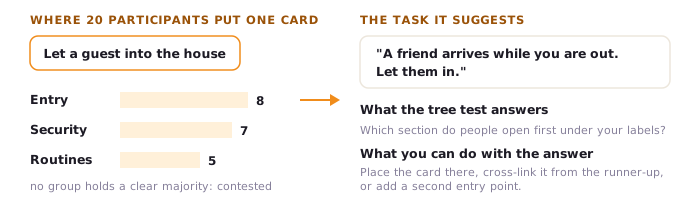
Some cards never find a home. A contested card is one placed by several participants into several different categories with no single category holding a clear majority. UXbeam lists them, most contested first, and tags each as either "groups disagree", when different mental models put it in different places, or "placements scattered", when there is no pattern at all.
Contested cards make particularly useful tree-test scenarios because their placement is already a live design question. If "Let a guest into the house" splits between entry, security and routines, write a task about letting a guest in and watch where people look first. First clicks and paths show which candidate entry points participants try, giving you evidence for placement, cross-links or a second route into the content.
2. Mental Model Detection
What UXbeam reports, and for which sorts
A single dendrogram averages every participant into one structure. In an open card sort UXbeam also compares participants with each other, by how they grouped the cards, and looks for coherent subgroups: people who organised the deck by the same rule. It reports one of four readings: one mental model dominates; a second (or further) mental model is emerging; two are competing; or mental models are still forming. For each model you see its characteristic category names, the cards it places differently and its key difference from the others, and with few participants the models are shown as provisional while the pattern settles.
This matters because a combined dendrogram can describe a compromise that no participant actually proposed. When two models exist, the model cards make each group’s organizing principle visible; when they are competing, UXbeam notes above the dendrogram that the combined tree may match neither; and each model's Sitemap this action turns that pattern into an editable candidate structure in one step. A model's size is the number of sorts that share its pattern.
Mental Model Detection applies to open sorts, where participants invent the categories. Closed sorts report category-use patterns and hybrid sorts organization patterns: how participants used the categories they were given and, in a hybrid sort, the ones they added, which is the evidence for keeping, merging or renaming those categories.
Why the smaller model may be the better hypothesis
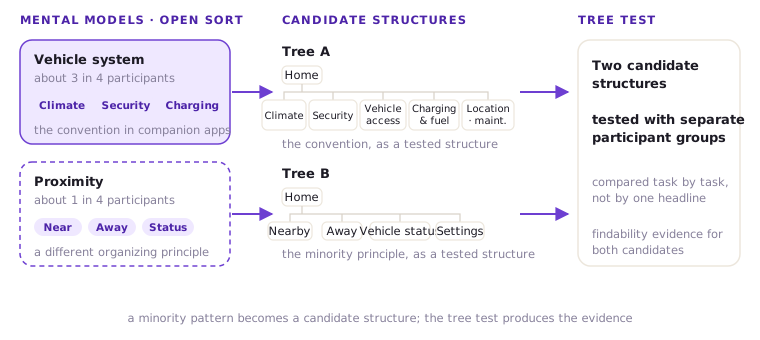
The smaller coherent pattern is often where the design opportunity is: an audience or a context of use the majority structure overlooks, a different organizing principle, or a second candidate structure worth testing alongside the first. Averaged into one tree, that pattern disappears. Detected on its own, it becomes a second structure you can draft in one step and test against the first, which is how a card sort produces design options instead of a single compromise.
Connected Car. In UXbeam's Connected Car study, most participants organized features by vehicle system, while a smaller group organized them around whether the driver was near or away from the car. Instead of dismissing that smaller pattern, the researchers used it to create an alternative navigation structure and tree-tested both approaches.
3. Tree Testing Results
The three outcomes of an attempt
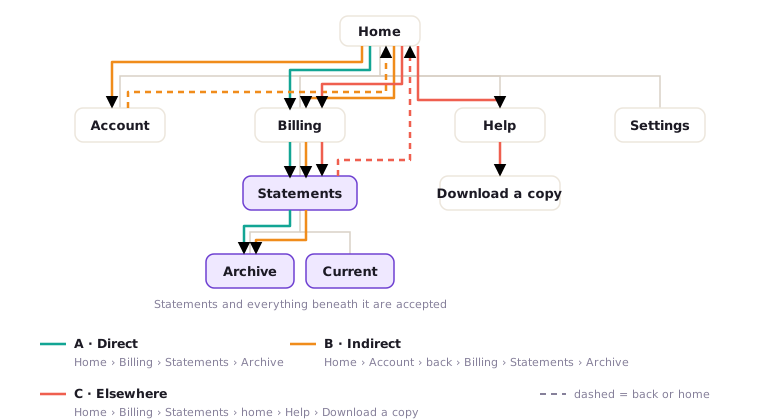
Every time a participant works one task in a tree test, UXbeam records one attempt and scores it on where the attempt ended:
- Direct. The participant finished on an accepted destination, or on a page beneath one, without using back or home.
- Indirect. The participant finished on an accepted destination (or beneath one) after at least one back or home.
- Elsewhere. The participant finished anywhere else, including paths that opened the right page, left it, and confirmed somewhere else.
Final-destination scoring distinguishes where a participant looked from where they chose to finish. If an attempt visits the accepted section but ends elsewhere, the outcome is Elsewhere and the path still shows the earlier visit. A task can have several accepted destinations, and ending on any of them counts. Backtracking is recorded as yes or no: one back and five backs both make an attempt Indirect. An abandoned attempt leaves the denominator.
Task success rate
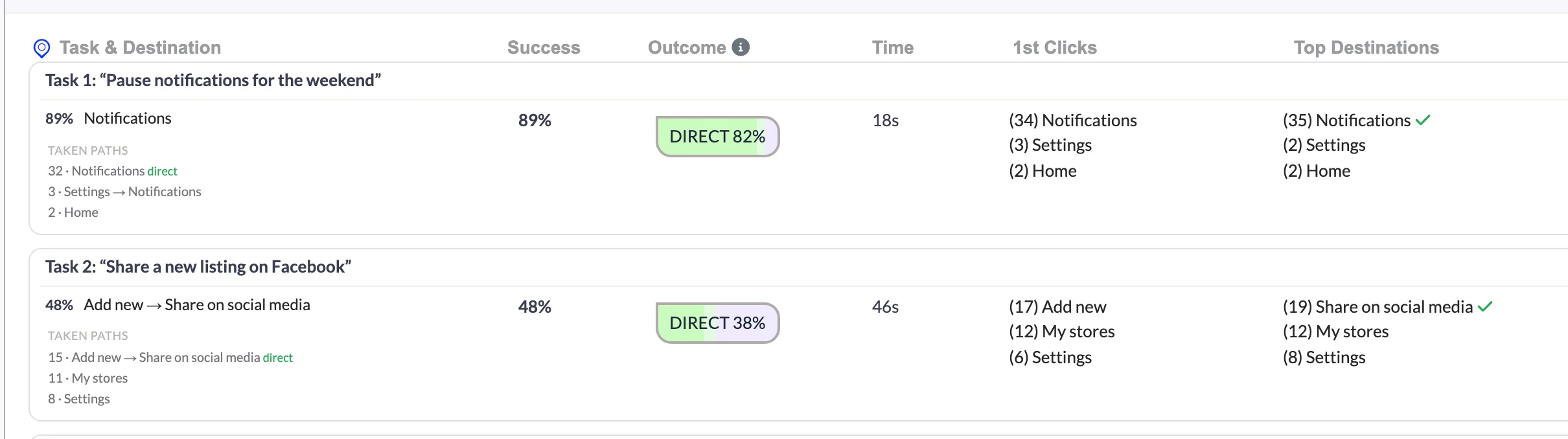
Success is the share of attempts that ended on an accepted destination: Direct plus Indirect. UXbeam shows each share as a whole number, rounded down, and success is the sum of the two shown shares, so it can read a point below the exact fraction: 35 of 39 shows as 89%. The denominator is the participants who attempted that task, one attempt each, with excluded participants removed.
Success highlights tasks that merit attention. Directness, first clicks and paths help locate the navigation choices to examine next. For a scale of what counts as good, the tree testing guide carries the Albert and Tullis bands.
Twenty participants attempt "You want to check how much you were charged last month." The accepted destination is Statements, so finishing on Archive or Current counts. Twelve finish there without backtracking, four get there after backing out of Account, four confirm elsewhere. Success is 80% (16 of 20) and Direct is 60% (12 of 20): most participants reach the section, and a quarter of those who do take a detour first.
Two meanings of Direct
UXbeam reports Direct at two levels, answering two different questions.
- Task direct percentage For one task, the share of attempts scored Direct: 60% in the example above.
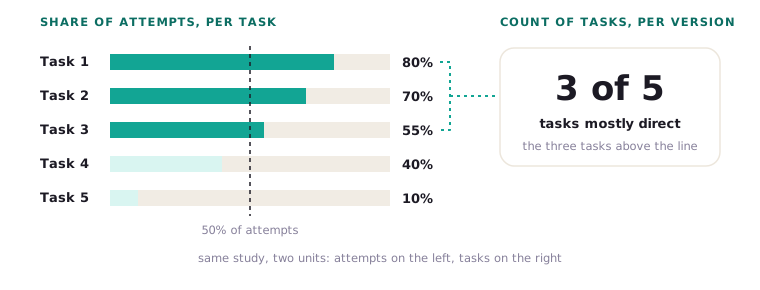
- Study-level Direct For a version of the tree, the proportion of tasks in which more than half of the attempts were Direct. It appears in the results strip and the projects list and drives Best Direct, Lift and the improvement marker. A count of tasks, not of people.
In the results strip it appears as a percentage of tasks, so a study whose tasks sit at 80%, 70%, 55%, 40% and 10% direct reads "Direct 60%" (3 of 5 tasks); the projects list shows the count. The two figures answer different questions. For a single task, report the task direct percentage. For a version, say it the way it is computed: "3 of 5 tasks mostly direct". Directness records navigation without backtracking, so it tells you how often the structure led people straight to the destination, and which tasks still carry a detour you can remove.
First clicks
The first click is the first choice a participant makes after the start screen: the second node in the recorded path. UXbeam lists the three most common first choices for each task, revealing which top-level labels attracted participants first.
When participants begin on the expected branch but finish elsewhere, inspect the deeper labels and routes. When their first clicks split across top-level labels, examine which names draw attention and whether another entry point would help. The distribution tells you where to start investigating.
Paths and final destinations
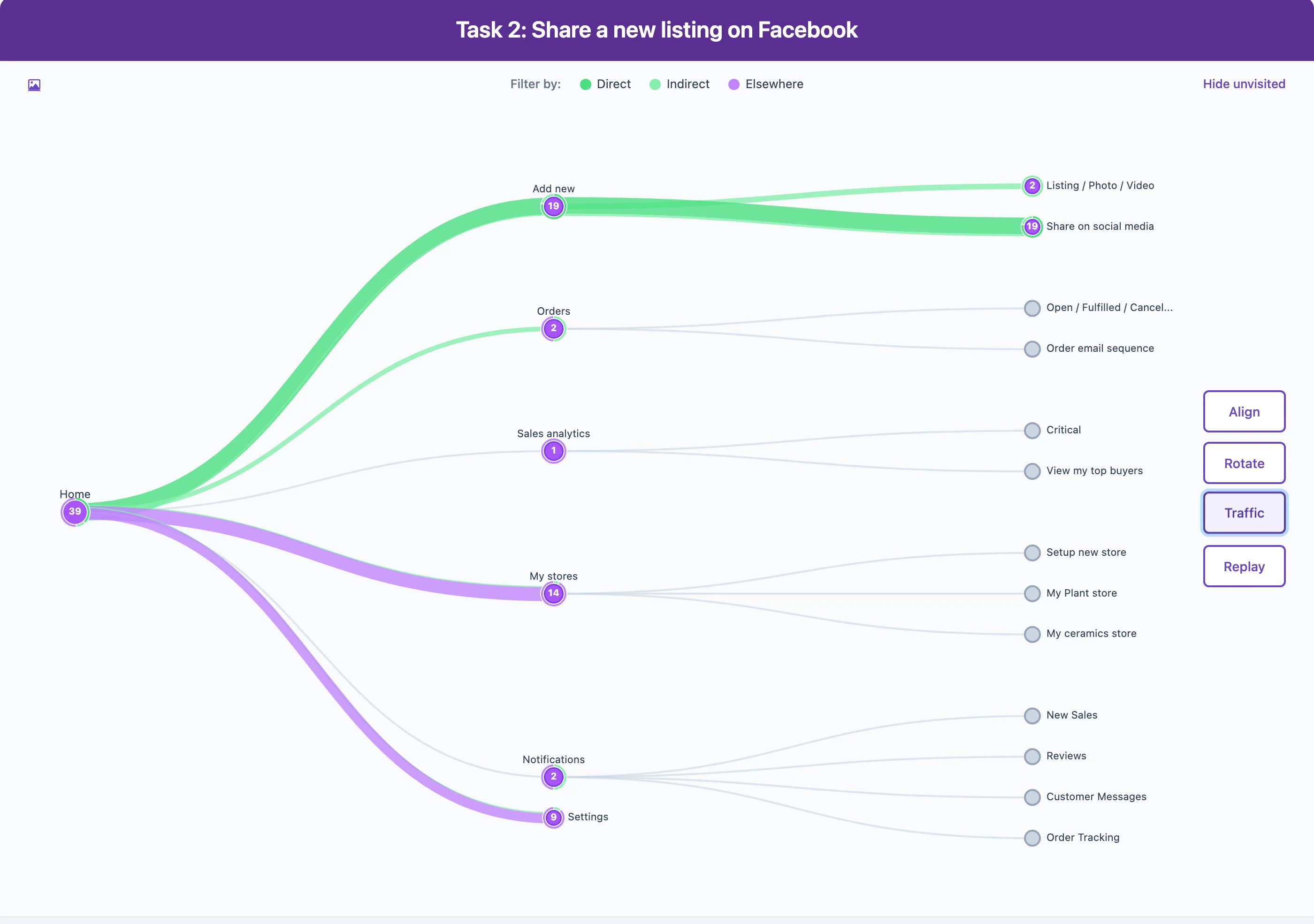
The paths view shows two pictures of the same attempts. Traffic draws the tree with a count on every node of how many attempts passed through it, coloured by outcome; those counts are node visits, so a participant who backtracks through a node is counted there more than once, and the busiest wrong branch stands out at once. Replay animates one trace per participant, with the individual paths listed beneath, so you can examine an individual journey step by step.
Final destinations are summarised separately: the three places attempts most often ended, with a tick on accepted ones. When many attempts end on one place that is not marked as accepted, UXbeam says so and offers to mark it valid. If that destination genuinely fulfills the task, you can accept it and see the results recalculate with the revised answer key.
Time per task
Time is the mean number of seconds from the start of a task to the participant's last click. It separates structures with equal success and flags successful tasks that took unusually long; the paths view then shows whether the time went into one or two long wanders or into a detour most participants shared. When success is high but completion is slow, review the paths to see where participants spent their time.
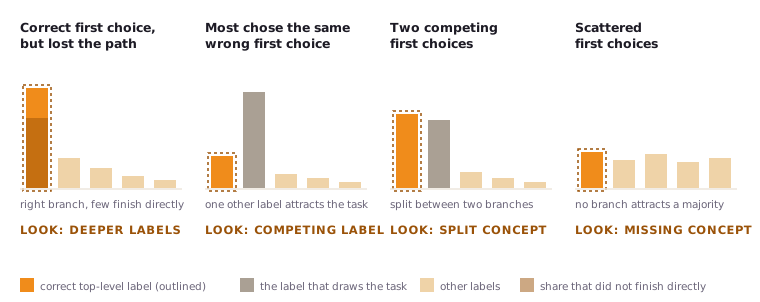
Four first-click patterns
When a task's first clicks and outcomes form a recognisable shape, UXbeam names the pattern on the task. Each one points at a different level of the tree:
- Correct first choice, but lost the path. Most participants chose the right branch and still did not finish directly. Start with the labels one or two levels down.
- Most chose the same wrong first choice. One other top-level label is drawing the task. Start there: does that label promise the content, or does the destination's parent fail to signal it?
- Two competing first choices. Participants split between two branches. Ask whether the content belongs in both, whether a cross-link or a second entry is warranted, or whether one label should give the content up.
- Scattered first choices. No branch attracts a majority. The concept may be missing from the top level, or the task may describe it in words participants do not use.
These patterns appear once a task has enough participants to show one. Together, these patterns give you a focused starting question: examine deeper labels, a competing top-level label, a split concept or a missing cue.
Study-level figures
The strip at the top of a version shows participants (the largest number who attempted any one task; individual tasks can have fewer), tasks, success (the mean of the task success rates) and the study-level Direct defined above. Two further summaries appear when the data supports them. Failure concentration tells you when a few tasks carry most of the failed attempts, helping you focus the next investigation on the tasks carrying the most difficulty. Full-scenario completion, shown as "1 in N complete the scenario as intended", looks only at participants who saw every task and asks how many succeeded on all of them: the figure to quote when the whole journey matters more than any single step.
Comparing versions
Iteration is where a tree test pays off, and UXbeam keeps the score. When you test a revised tree, UXbeam makes its task results and version-level progress easy to revisit. The improvement marker ▲ on a version means it set a new best in the share of tasks mostly direct, compared with earlier versions. Best Direct and Lift on the projects page summarise the same comparison, Lift being the change in tasks mostly direct from the first version, so the project list shows how the share of mostly-direct tasks changed across revisions.
Best Direct, Lift and the marker appear once both versions have at least ten included responses on every task and the same number of tasks.
Between versions you will often change tasks as well as the tree, and that is how a study gets sharper: a task that was leading, compound or vaguely set may have been distorting the evidence, and correcting it makes the next round more informative without touching the architecture (section 4). When reporting, distinguish results for tasks you retained from results for tasks you rewrote: both inform the next decision, but each reflects a different study setup.
4. Study Design and Evidence Quality
Sample size and the sample-size indicator
Card sort results carry a "Sample size" indicator, and the projects list shows the same status: Very early (1 to 9 included participants), Early (10 to 19), Developing (20 to 29), Good sample (30 to 49) and Large sample (50 or more), each with a sentence on what that sample can support. It answers the question every researcher asks at the wrong moment: can I read this yet? From Developing, common groupings and differences can be examined; from Good sample, you can examine groupings and disagreements as inputs to candidate structures; a Large sample broadens the base for mental models and label choices. The bands tell you what the sample can support at each stage, so you know which readings to make now and which to wait for.
Exclusions
Exclusion is a researcher's decision, and UXbeam applies it to every result at once. Mark a participant "Exclude from results" and they leave the task rates and the strip, the paths views, shared results links, the projects list count, the similarity matrix and the dendrogram inputs, mental models, the participant sort list and the CSV export. The participant stays listed under "Excluded from results" and can be re-included; everything recomputes. One decision, one consistent set of numbers everywhere.
Review the participant list before reading results: duplicate submissions, very fast runs and your own test sessions are the usual exclusions, and each one is reversible. Per-task participant counts then show exactly how many people attempted each task.
Job-shaped tasks and leading words
A tree test evaluates an architecture through user goals expressed as tasks, so the tree and the tasks are assessed together. A task that misstates the goal, bundles two goals, or hands over the answer in its wording changes what the numbers mean, which makes writing the tasks part of the research.
The reliable form is the job-shaped task: a realistic situation, an intent and an outcome, in up to three clauses, written the way the participant would think about it rather than the way the site labels it. The task instructions guide sets out the form; the leading tasks guide shows how to spot and rewrite the leading kind.
Task wording distorts results in both directions. Leading wording inflates them: when a task contains a word that also appears in a top-level label or in the destination's path, participants match words instead of concepts, first clicks converge, the task reads as highly direct, and the structure gets credit it has not earned. UXbeam checks for this at setup, where an opt-in check proposes alternative wordings, and on the results page, where tasks sharing words with the destination path or the most common first clicks are flagged. Wording can also manufacture failures: a misleading situation, an incidental cue toward one branch, or two goals bundled into one task can send participants to a destination the answer key never intended, and the structure takes the blame for a question it was never asked.
Finding and fixing either kind of task can rescue a study. When a task echoes a navigation label or suggests an unintended branch, rewriting it can give you a clearer view of how people navigate toward the intended goal. When the fault was in the question, fixing it spares you a redesign the structure never needed. Rewrite to remove unintended distortion, never to raise the score. The goals behind well-shaped tasks then carry forward into wireframes, prototypes and usability tests as the same questions asked of richer designs.
5. Interpreting Results Together
Sort, draft, test, revise: each step hands the next one its evidence. A sort gives you candidate sections, labels in participants' own words, the cards that need a decision and, in an open sort, the mental models worth building for. A tree test shows which candidate people can navigate, task by task, and where to adjust. The next version measures the change. In practice:
- Read the sort. Matrix for settled and split pairs, dendrogram for sections, contested cards for boundary cases, mental models for whether one structure serves everyone or two candidates are worth building.
- Build the candidates. One structure with cross-links for the boundary cases, or two candidate structures from two models, drafted from the sort in one step. Turn the contested cards into job-shaped tree-test tasks.
- Read the tree test, then examine both the structure and the tasks. Success, directness, first clicks and paths show what to change in the tree; the task wording check shows which questions to sharpen before the next round.
- Retest and compare. Report task figures per task and study-level Direct as "X of Y tasks mostly direct". Compare retained tasks for a more consistent reference, and use revised tasks to examine the intended goal with clearer instructions. The project list keeps the record: which revision earned the marker, and by how many tasks.